Guide
Sending a Direct Message
A step-by-step walkthrough for sending bulk direct messages in Slack with /sendmessage, including images and CTA buttons.
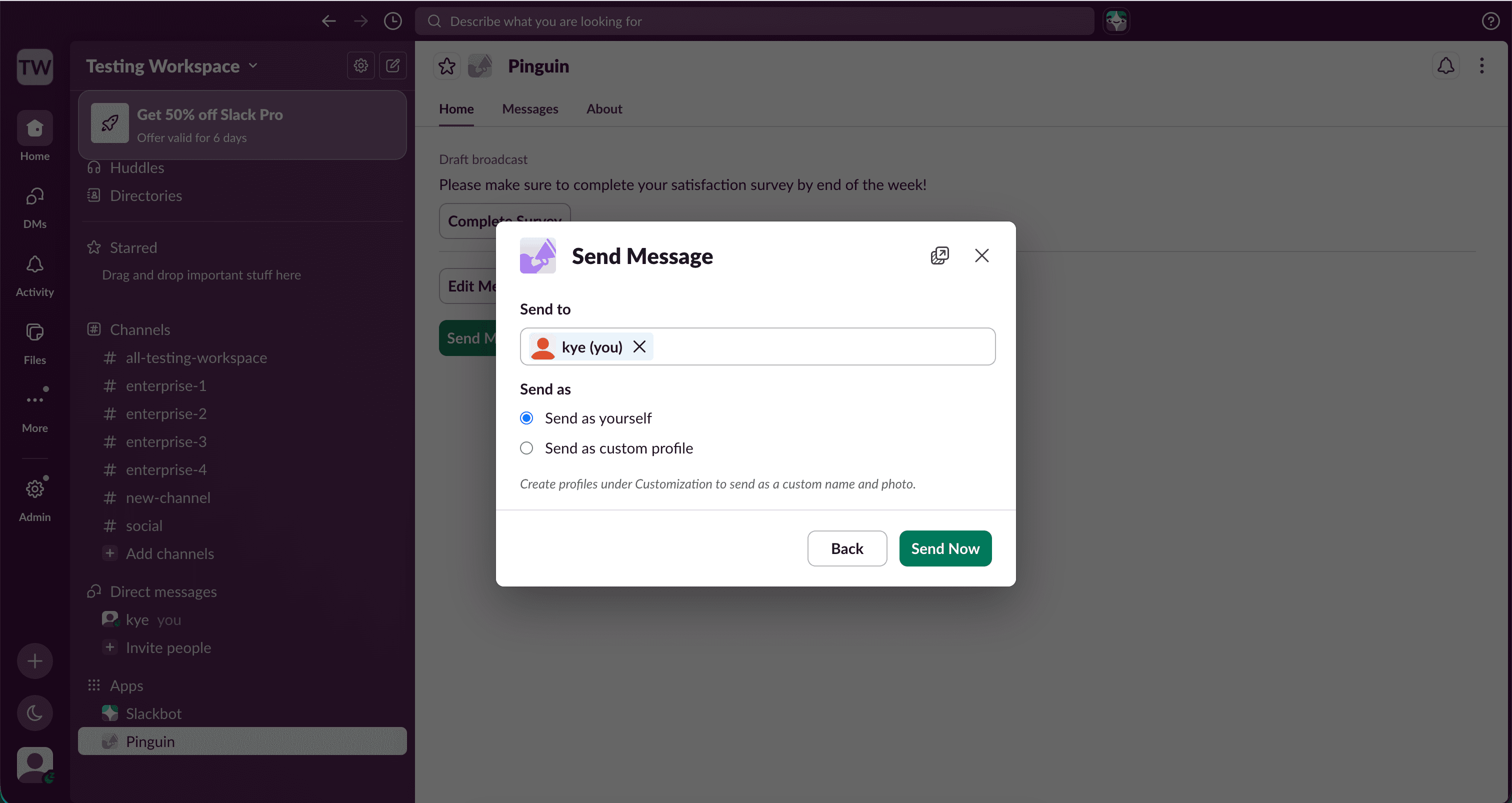
Start a direct message
Select "New Direct Message" from the Pinguin home tab, or type /sendmessage followed by your message in any Slack conversation.
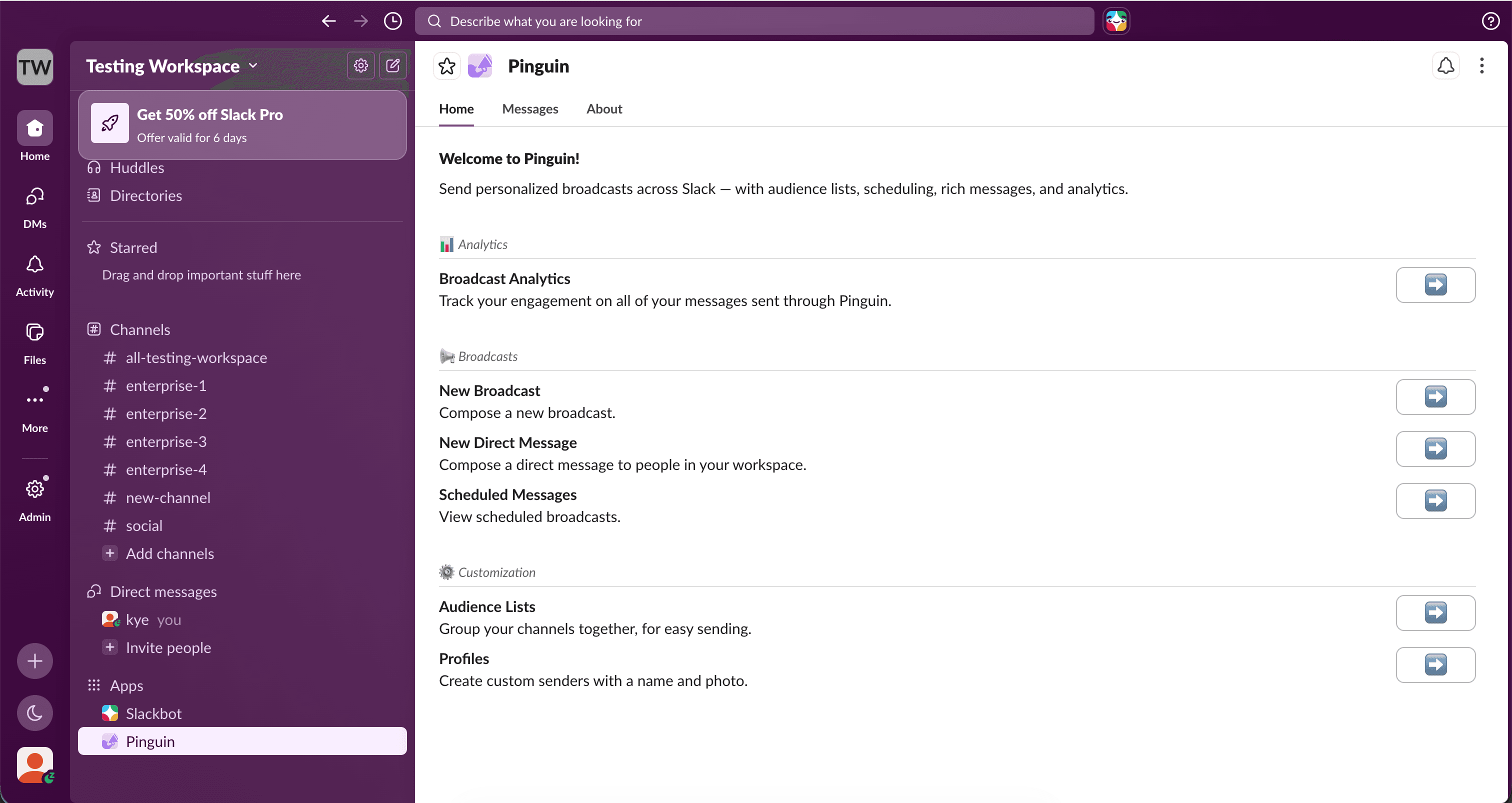
Compose your message
Write the message you want to send. You can edit the text before anything goes out to your recipients.
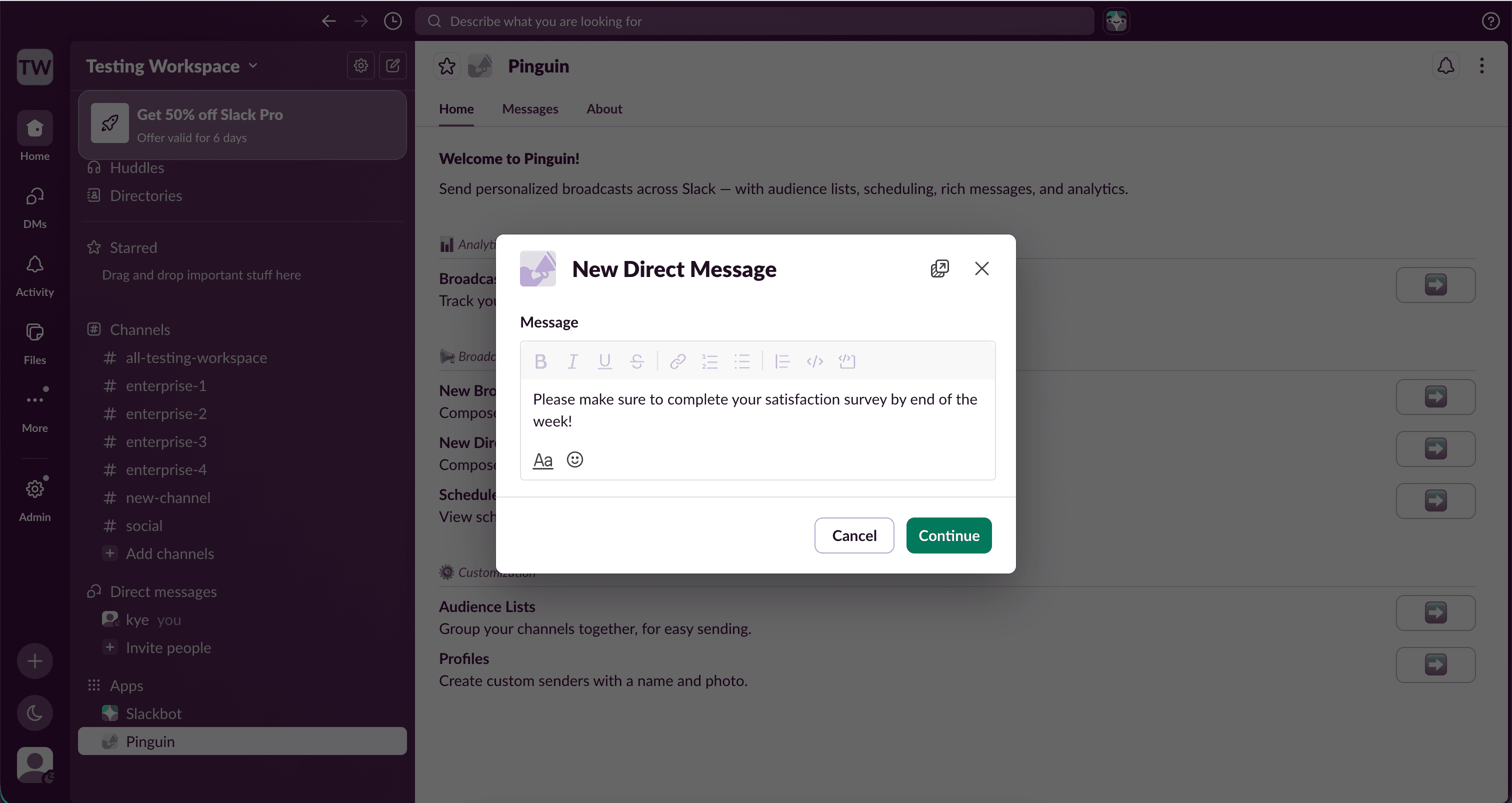
Preview your message
Review a live preview of your DM. Add an image or attach CTA buttons before you send.
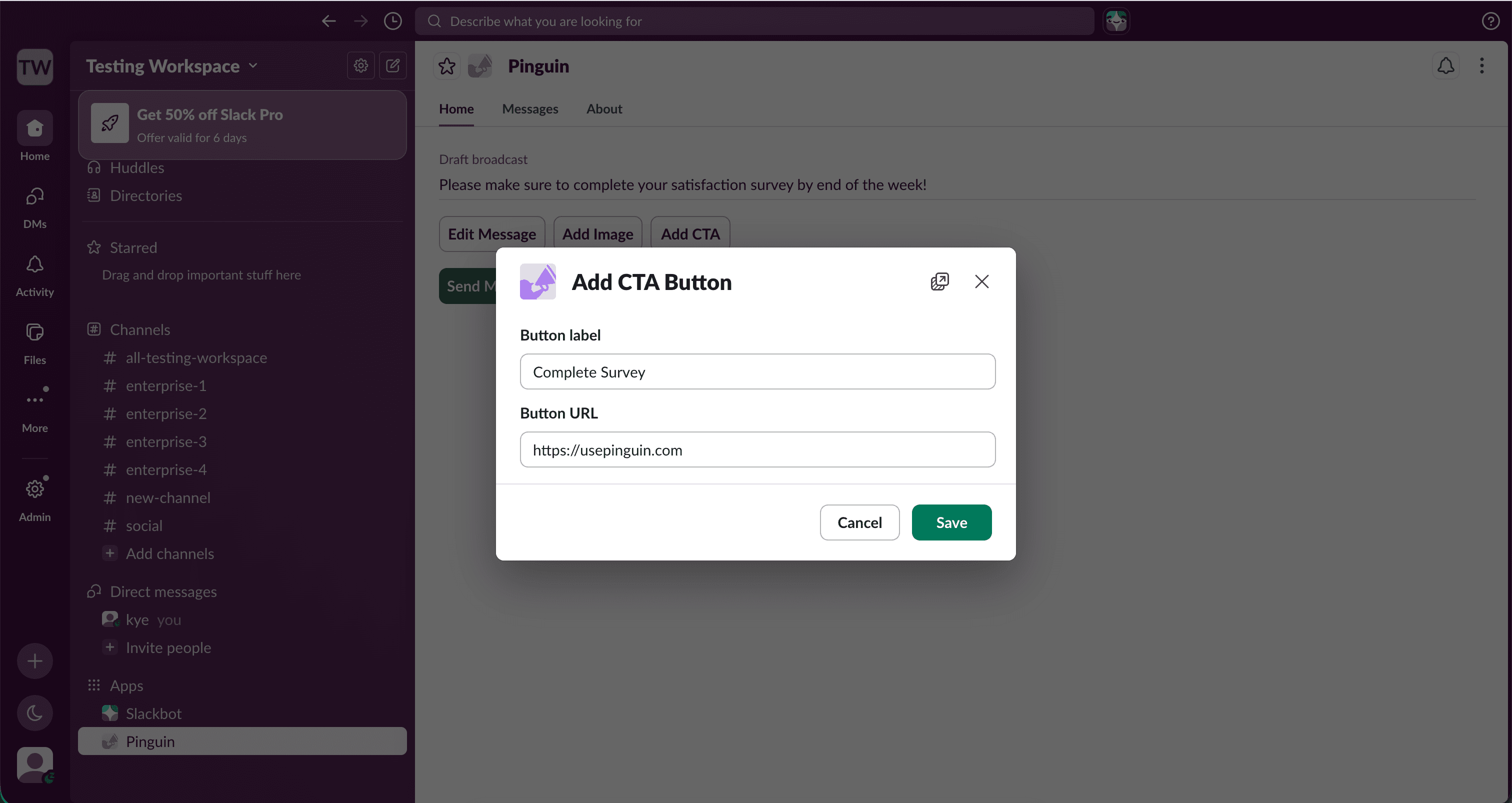
Adding a CTA
Add a call-to-action button with a label and URL. Recipients can click straight through to docs, forms, or any link you choose.
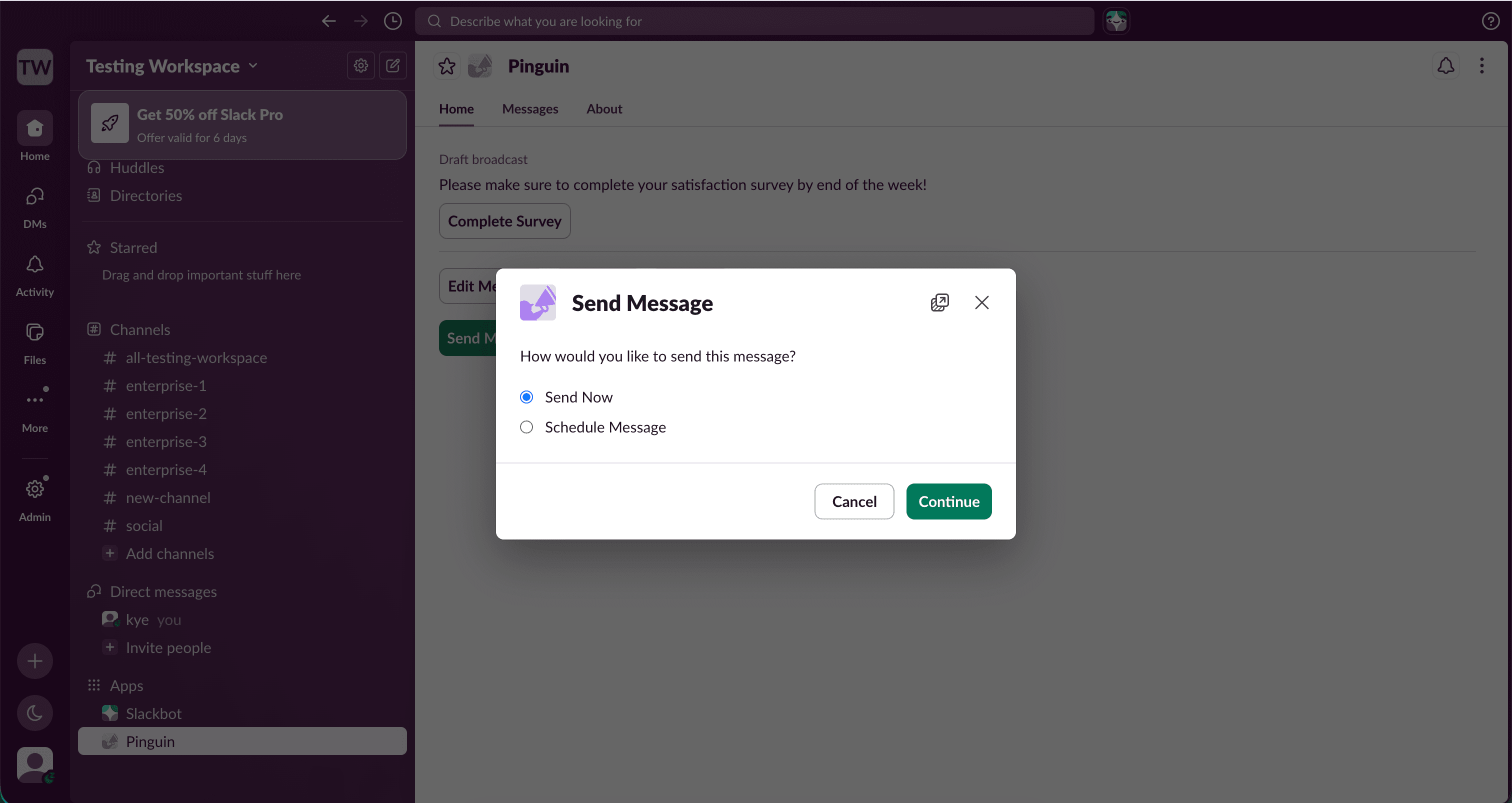
Send now or schedule
When you're ready, send your message immediately or schedule it for a specific date and time.
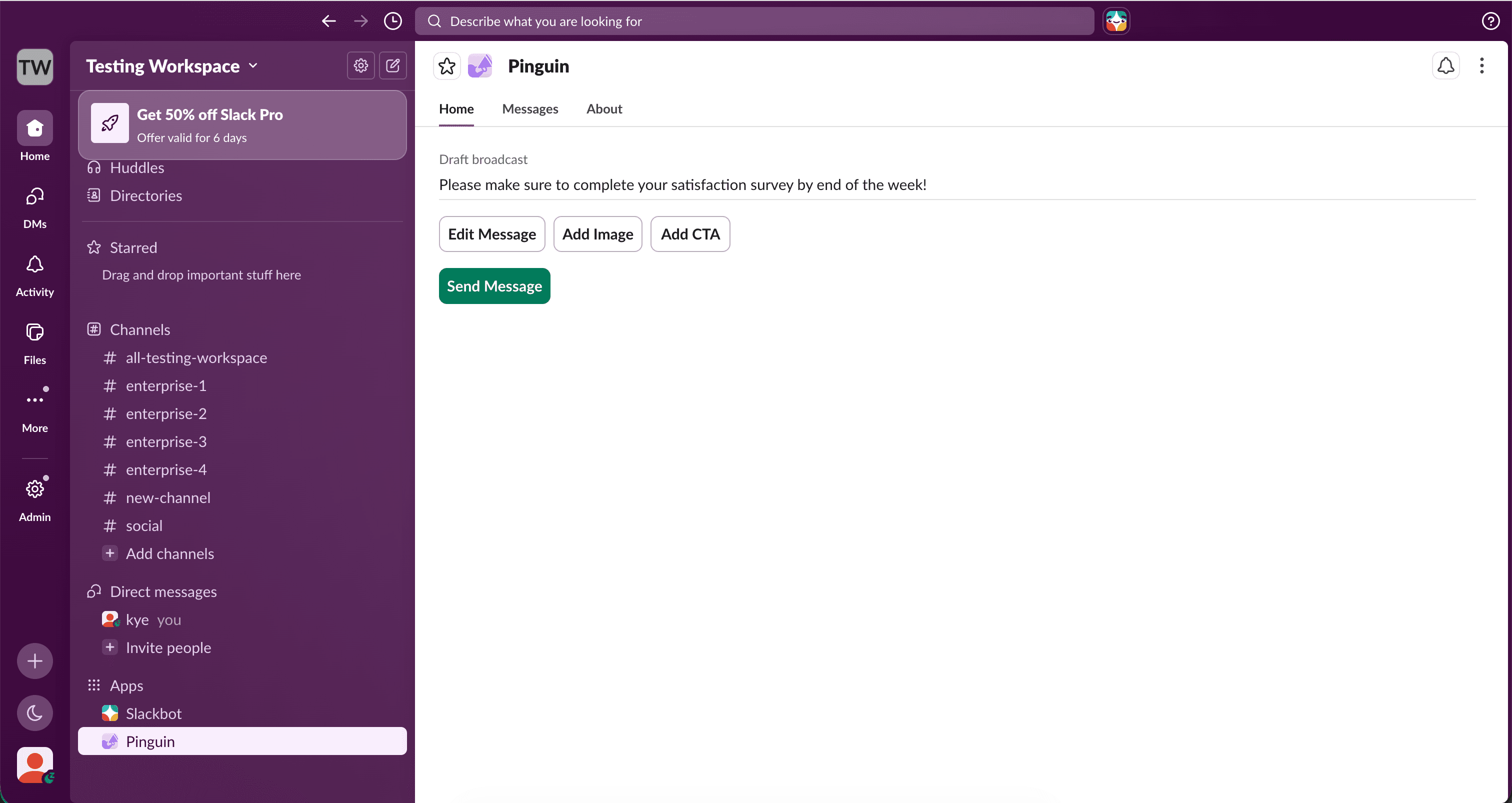
Select recipients and send
Choose who should receive your message, then send. Your message will have been sent as a DM!